How to Organize Multiple Social Links Without Confusing Visitors
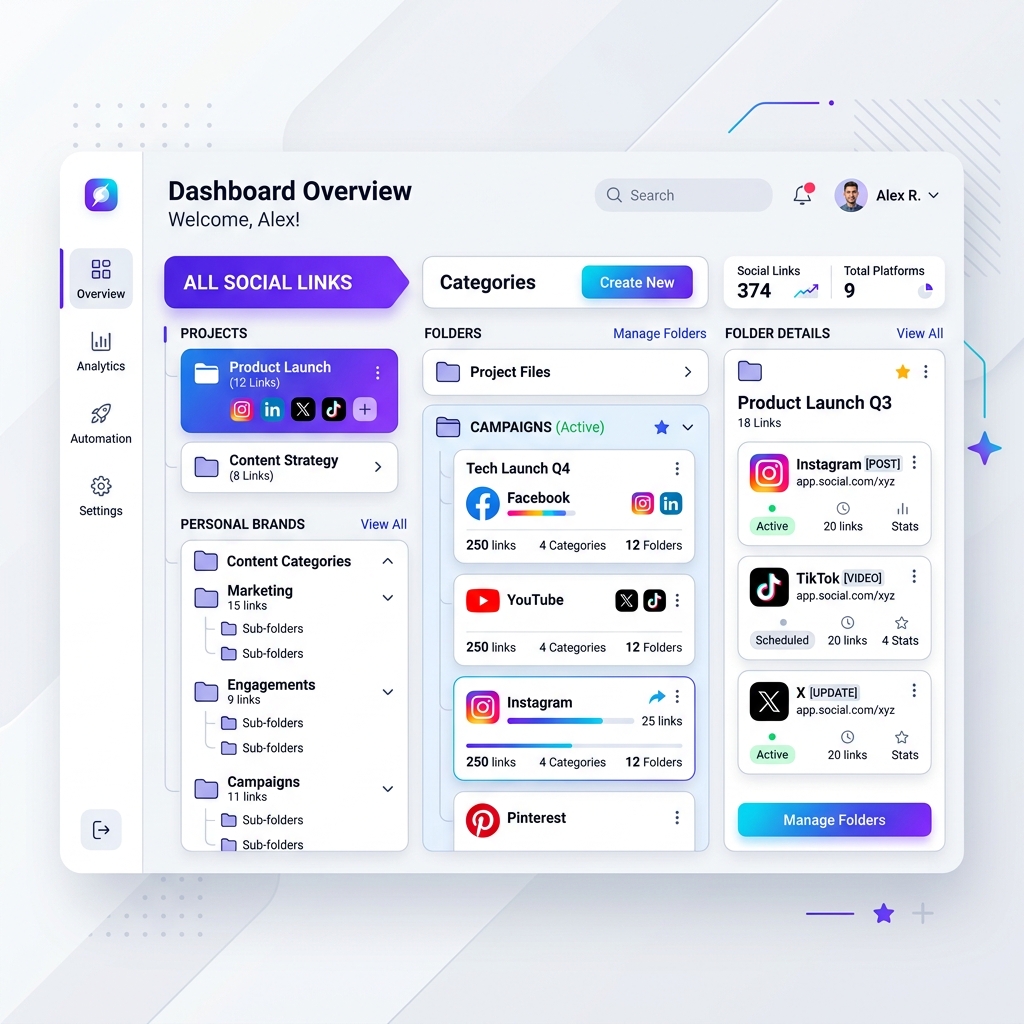
As a modern creator, entrepreneur, or business owner, your digital presence rarely lives on a single platform.
You might post daily short-form videos on TikTok, share visual lifestyle content on Instagram, publish long-form tutorials on YouTube, build professional authority on LinkedIn, drop podcasts on Spotify, and run an e-commerce shop on Shopify.
When followers land on your profile and tap your bio link, they want to connect with your world. However, if your bio page greets them with a chaotic, endless list of 15 to 20 unorganized buttons, decision fatigue takes over.
Instead of exploring your content, confused visitors bounce in seconds.
To turn profile visits into loyal subscribers, buyers, and followers, you need a clean visual strategy. Here is your ultimate guide on how to organize multiple social links without confusing your visitors.
1. Separate “Social Profiles” from “Conversion Goals”
The Mistake
Treating secondary social media profile links (such as your X account, Facebook page, or Pinterest profile) with the exact same large, full-width button styling as your main revenue-generating offers (like your digital store or email newsletter).
When every link looks like a giant primary button, your visitor’s eye doesn’t know where to focus first.
The Solution: Use Social Icon Footers
Keep full-width button rows reserved exclusively for high-intent conversion actions. For secondary social platforms where you simply want people to follow you:
- Place minimal Social Media Icon Rows at the bottom (or top) of your profile header card.
- Use uniform, clean brand icons (Instagram, TikTok, YouTube, Spotify, LinkedIn, X).
- This saves valuable screen real estate for your main conversion drivers while still giving fans a quick 1-tap way to find your other channels.
2. Group Secondary Content into Categorized Folders
If you publish multiple articles, podcast episodes, or product categories each week, listing every single link on your primary bio screen will quickly create visual clutter.
The Solution: Collapsible Link Collections
Organize your secondary links into clean, expandable Category Folders:
- 📁 Featured Products & Merch (Includes sub-links for Apparel, Accessories, Best-Sellers)
- 📁 Recent Podcast Episodes (Includes direct links to recent guests and show notes)
- 📁 Free Creator Resources (Includes downloadable PDFs, templates, and guides)
- 📁 Press & Inquiries (Includes media kit, speaker bookings, and brand contact form)
By grouping secondary links into collapsible folders, your primary bio screen stays minimal and scannable, while visitors who want to dive deeper can easily open relevant sections.
3. Establish a Clear 1-3-5 Visual Hierarchy
To guide visitors naturally toward your most important offer, structure your page using the 1-3-5 Link Hierarchy Framework:
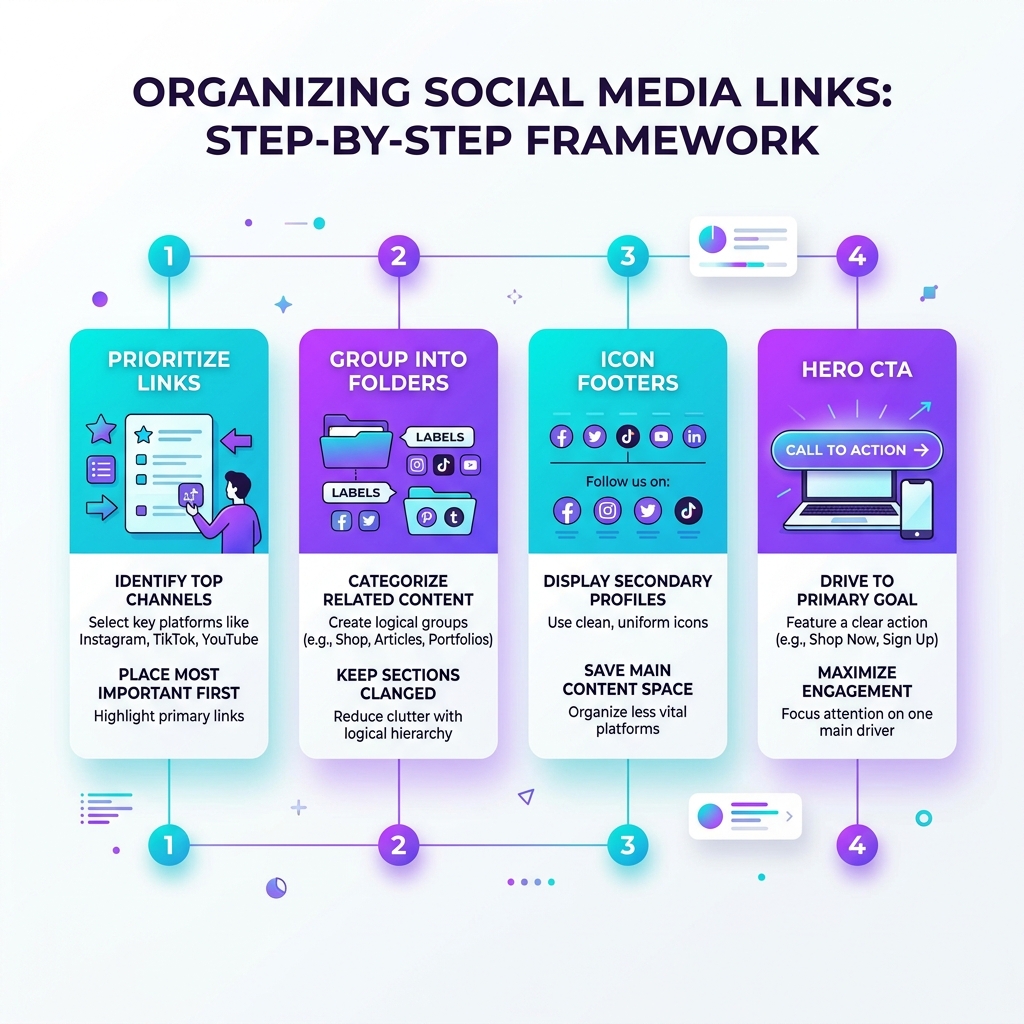
The 1-3-5 Link Structure:
- 1 Hero Offer (Primary Focal Point): Give your single #1 priority goal (e.g., product launch or free lead magnet) a distinct visual treatment—such as a custom accent color, outline glow, or animated pulse badge.
- 3 Core Action Buttons: Highlight 3 secondary high-value links (e.g., Latest YouTube Video, Weekly Newsletter, Book a Consultation) using solid, high-contrast buttons.
- 5 Collapsible Folder Resources / Icon Links: Organize all remaining secondary profiles and archives into clean icon footers or collapsible folder collections.
4. Use Inline Rich Media Embeds Instead of Redirection
Forcing visitors to leave your bio page and open external mobile browser tabs just to listen to a 30-second audio track, watch a short video clip, or check out a product card increases drop-off rates.
The Solution: Interactive Embedded Widgets
Integrate native rich media embeds directly into your bio hub:
- 🎵 Music & Podcasts: Embed playable Spotify or Apple Music player cards right on the page so visitors can hit play immediately.
- 📹 Video Teasers: Embed YouTube Shorts, TikTok clips, or Vimeo trailers directly into clean light-theme cards.
- 🛍️ Shoppable Product Cards: Showcase physical products or digital downloads with inline preview images and instant buy triggers.
Inline media keeps visitors engaged inside your bio hub longer, increasing the likelihood that they will explore your other links.
5. Tailor Button Microcopy for Immediate Clarity
Vague button titles like “Links”, “Check This Out”, or “My Work” confuse visitors because they don’t explain what value is on the other side of the tap.
High-Converting Button Copy Examples:
| Generic / Confusing CTA | Organized & Value-Driven CTA |
|---|---|
| ❌ Socials | ✅ Follow Me on YouTube for Weekly Tech Reviews 📹 |
| ❌ Store | ✅ Shop New Minimalist Desk Setup Gear 🛍️ |
| ❌ My Blog | ✅ Read: 10 UX Tips for Mobile Bio Links 📖 |
| ❌ Contact | ✅ Book a 15-Min Free Brand Strategy Session 🗓️ |
Action-oriented copy sets clear expectations, boosting click confidence and conversions.
3 Real-World Layout Examples by Creator Type
Example A: E-Commerce & Retail Brand
- 🌟 Hero Button: “Shop 25% Off Summer Collection (Limited Drop) 🛍️”
- 🔘 Primary Button 1: “Best Sellers & Customer Favorites”
- 🔘 Primary Button 2: “Track Your Order & Shipping Status”
- 📁 Folder: “Customer Reviews & Styling Guides”
- 📱 Icon Footer: Instagram | TikTok | Pinterest | Facebook
Example B: Content Creator & Youtuber
- 🌟 Hero Button: “Watch New Video: Studio Tour & Desk Setup 📹”
- 🔘 Primary Button 1: “Get My Free Creator Productivity Guide 📩”
- 🔘 Primary Button 2: “Listen to Podcast Ep. 14 on Spotify 🎙️”
- 📁 Folder: “My Video Gear & Camera Recommendation List”
- 📱 Icon Footer: YouTube | Instagram | TikTok | X | Discord
Example C: Consultant & Freelancer
- 🌟 Hero Button: “Schedule a Free 15-Min Discovery Call 🗓️”
- 🔘 Primary Button 1: “Download My 2026 Client Case Study Pack 📄”
- 🔘 Primary Button 2: “Read Latest Industry Insights on Substack ✍️”
- 📁 Folder: “Client Testimonials & Portfolio Projects”
- 📱 Icon Footer: LinkedIn | X | YouTube | Email
Organize Your Bio Hub Effortlessly with OnlyLink
Organizing multiple social links doesn’t have to be overwhelming. With OnlyLink, you can structure your complete digital presence into a stunning, high-converting bio hub in minutes:
- 🎨 Clean Light & Dark Themes: Fully customizable light mode aesthetics with crisp typography, soft shadows, and custom accent colors.
- 📁 Drag-and-Drop Folders: Easily group dozens of links into organized, collapsible collections.
- 📱 Minimal Social Icon Rows: Display all your social platform handles cleanly without cluttering main button areas.
- ⚡ Sub-Second Mobile Performance: Lightning-fast global edge rendering ensures instant load times over cellular data.
- 📊 Real-Time Traffic Analytics: Track exactly which social channel drives the highest clicks and conversions.
Stop confusing your social media visitors. Create your clean, organized OnlyLink page today and turn casual profile scrollers into engaged followers and customers.
Ready to build your link in bio?
Create your free OnlyLink page in under a minute unlimited links, analytics and custom designs.
Get started freeKeep reading
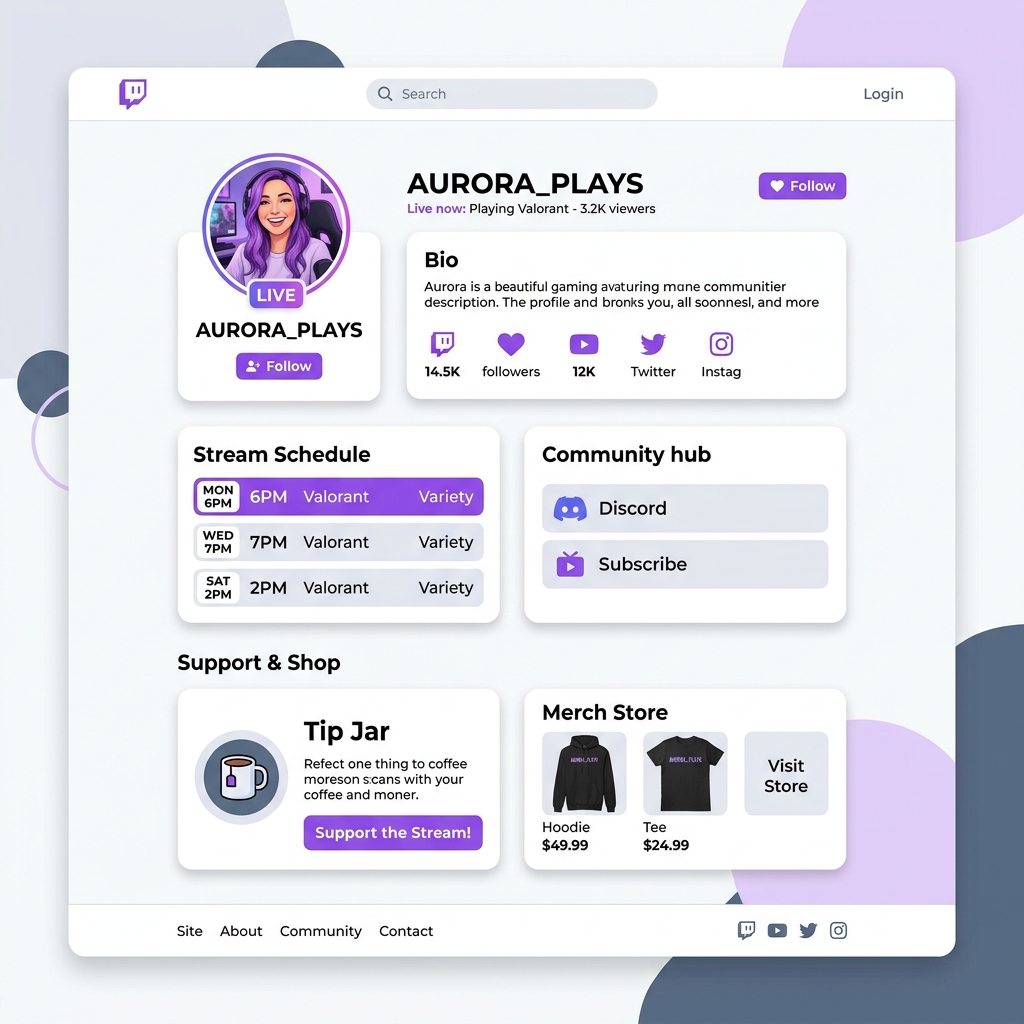
Twitch Streamers: Building a Bio Page That Converts Viewers to Followers
Learn how Twitch streamers can build a high-converting, light-theme link-in-bio page to convert live stream …
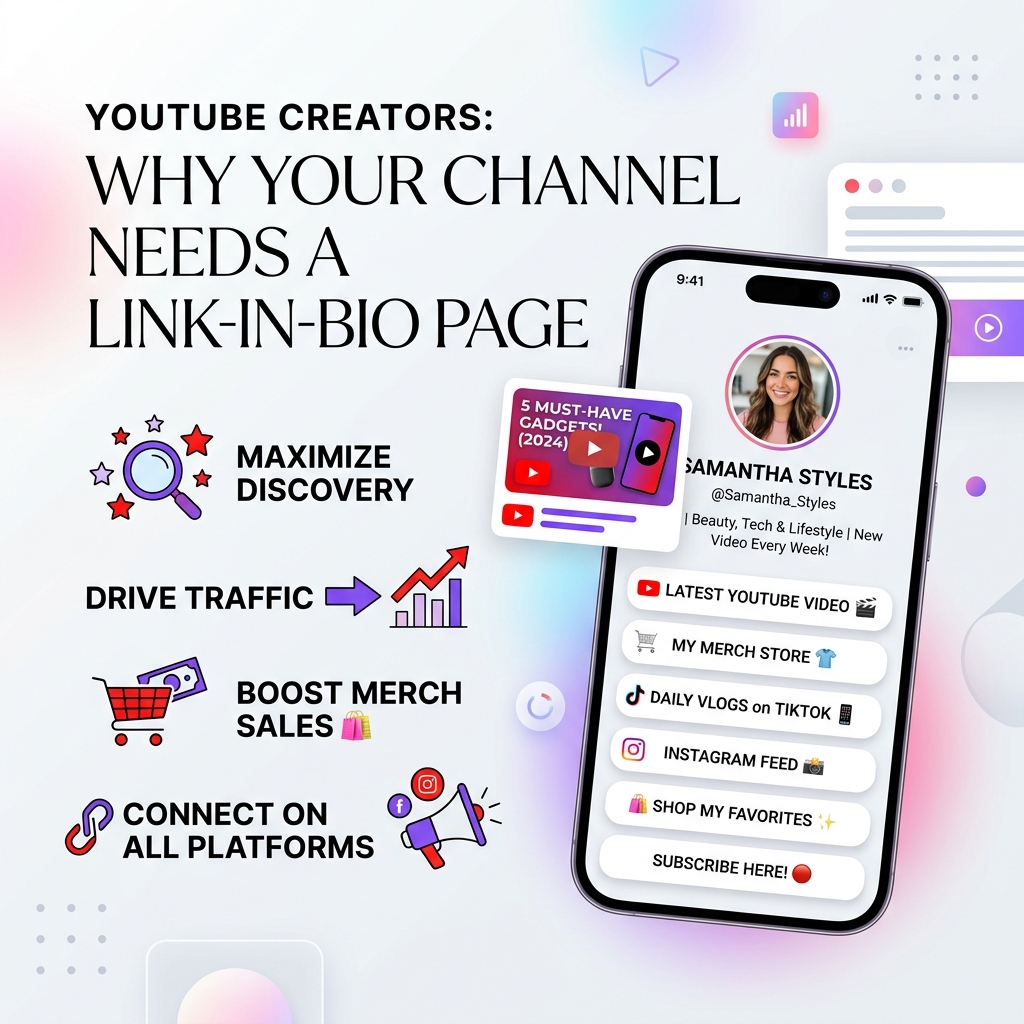
YouTube Creators: Why Your Channel Needs a Link-in-Bio Page
Discover why YouTube creators need a centralized light-theme link-in-bio page to convert video viewers into …