
How to Add a Link in Bio on Instagram (Step-by-Step)
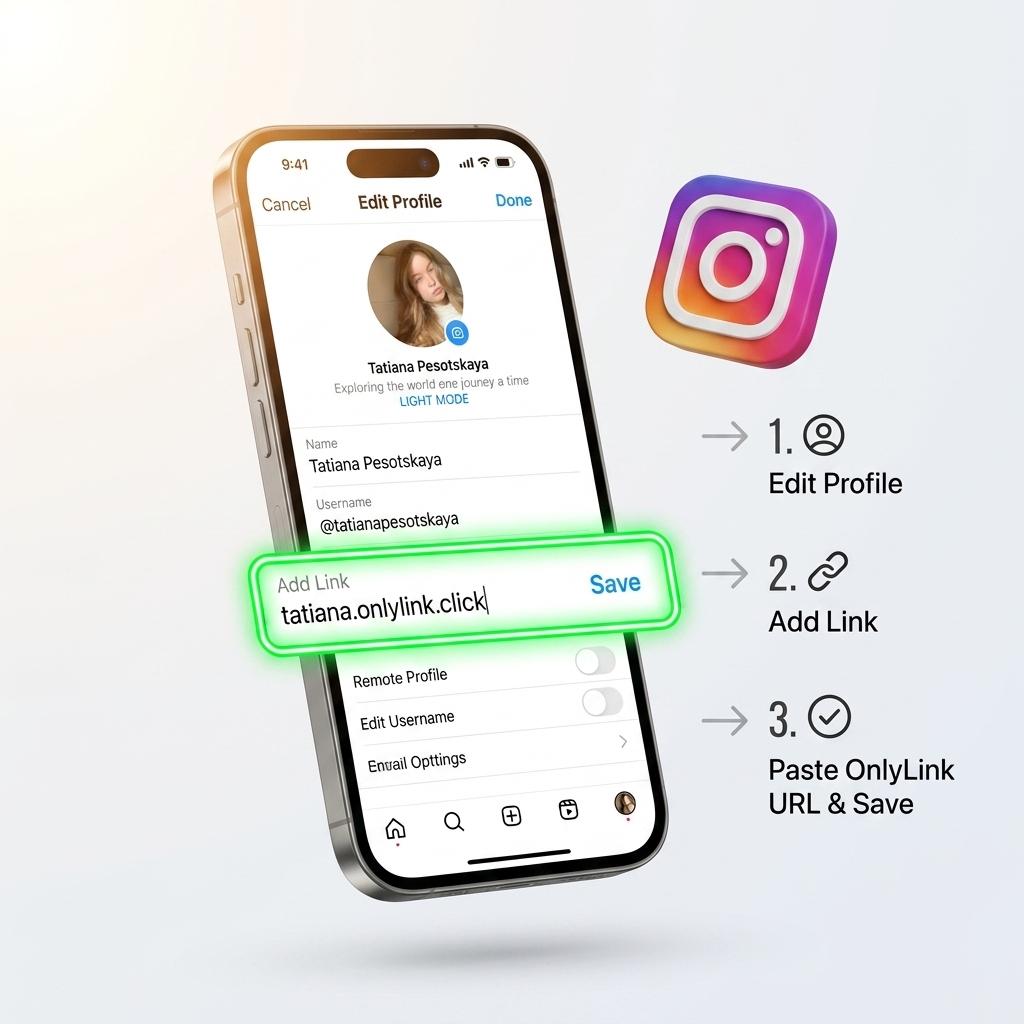
Instagram gives you one clickable link in your profile — so the trick is making that single link lead to everything. Here’s exactly how to add a link in bio on Instagram, step by step, and how to share multiple links from one URL.
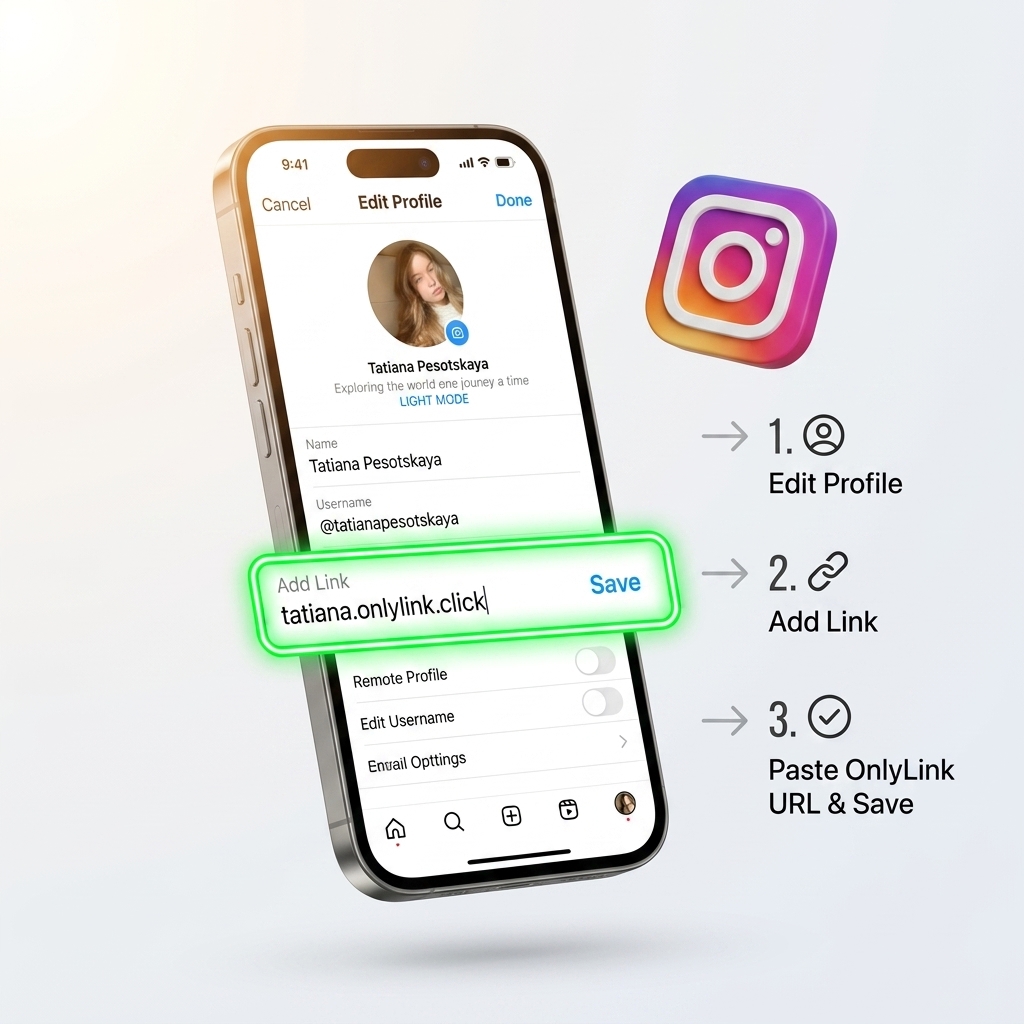
Before you start: create your link-in-bio page
Instagram’s bio link is just a URL. To send people to more than one place, point it at a link-in-bio page that lists all your links.
If you don’t have one yet, create a free OnlyLink page — it takes about a minute. New to the concept? Read What is a link in bio? first.
How to add your link in bio on Instagram
Step 1 — Copy your link-in-bio URL
Open your OnlyLink dashboard and copy your page address — it looks like yourname.onlylink.click. Tip: use the built-in QR code to share it offline too.
Step 2 — Open “Edit profile”
In the Instagram app, go to your profile and tap Edit profile.
Step 3 — Paste the link into the Website field
Tap Links → Add external link, paste your OnlyLink URL, and save. (On older versions, paste it directly into the Website field.)
Step 4 — Save and test
Return to your profile and tap your link to make sure it opens your page. Done — your one Instagram link now leads to all of your content.
How to share multiple links on Instagram
This is the real reason to use a bio link. On your OnlyLink page you can:
- Add unlimited links — latest video, shop, newsletter, and more
- Group links into collections so your page stays tidy
- Embed YouTube, Spotify, and TikTok that play right on the page
- Reorder links anytime so this week’s priority is always on top
Change your links whenever you want — the URL in your Instagram bio never has to change again.
Bonus: track which links get clicked
Guessing what your audience wants is a waste. With analytics you can see views, clicks, and your top links in real time, so you know exactly what’s working and what to promote next.
Do the same on TikTok and YouTube
The process is nearly identical on other platforms:
- TikTok: Edit profile → Website → paste your link (available once you’re eligible for a bio link).
- YouTube: Customize channel → Basic info → add your link.
One OnlyLink page can power the bio link on every platform at once.
Frequently asked questions
Can I add more than one link on Instagram? Instagram now allows a few links, but a link-in-bio page is still the cleanest way to share everything — with custom design and analytics on top.
Is it free to add a link in bio? Yes. Creating an OnlyLink page and adding it to Instagram is completely free.
Will changing my links break my Instagram bio? No. You edit links on your OnlyLink page; the URL in your Instagram bio stays the same.
Ready to go?
Set up your page once and never wrestle with Instagram’s single-link limit again. Create your free OnlyLink and add it to your bio in minutes. Choosing a tool first? See the best link in bio tool for creators.
Ready to build your link in bio?
Create your free OnlyLink page in under a minute unlimited links, analytics and custom designs.
Get started freeKeep reading
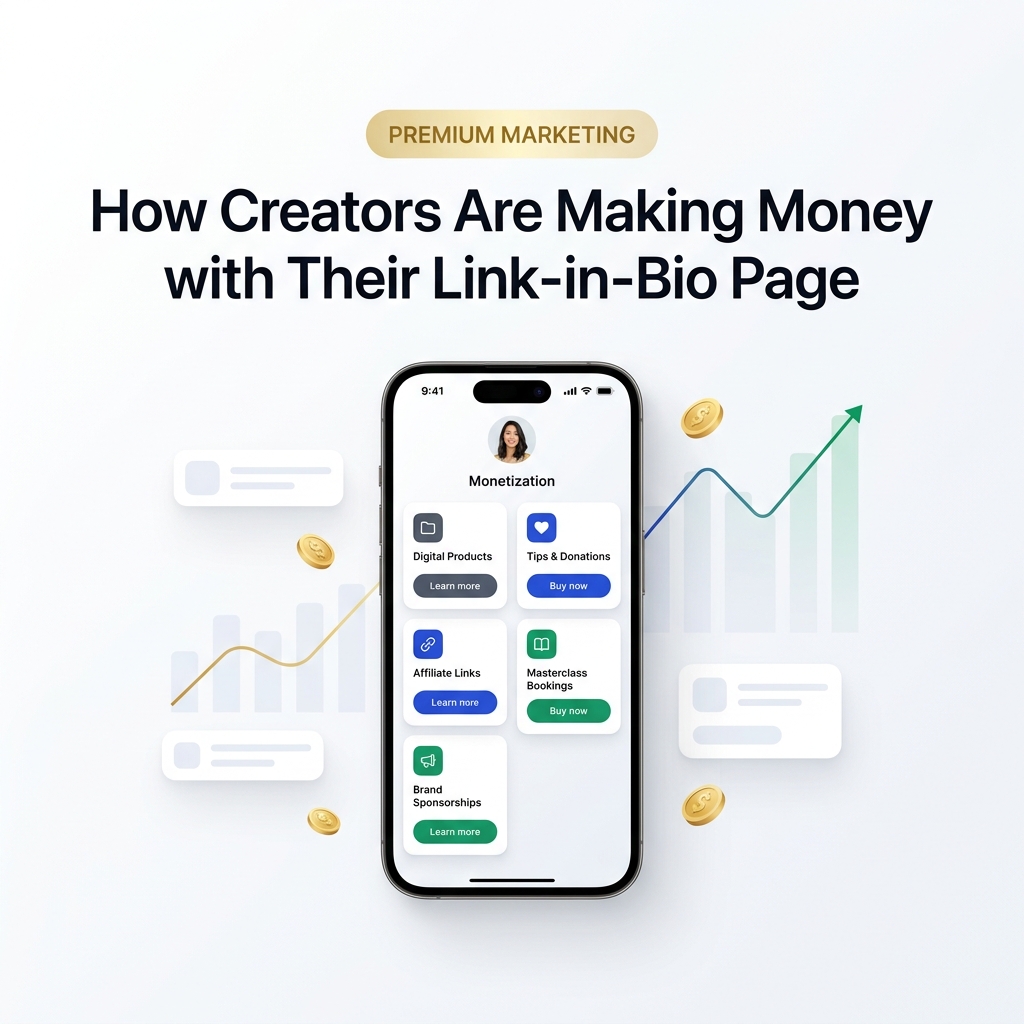
How Creators Are Making Money with Their Link-in-Bio Page
Discover how modern creators turn single bio links into multi-stream revenue hubs. Learn the top monetization …
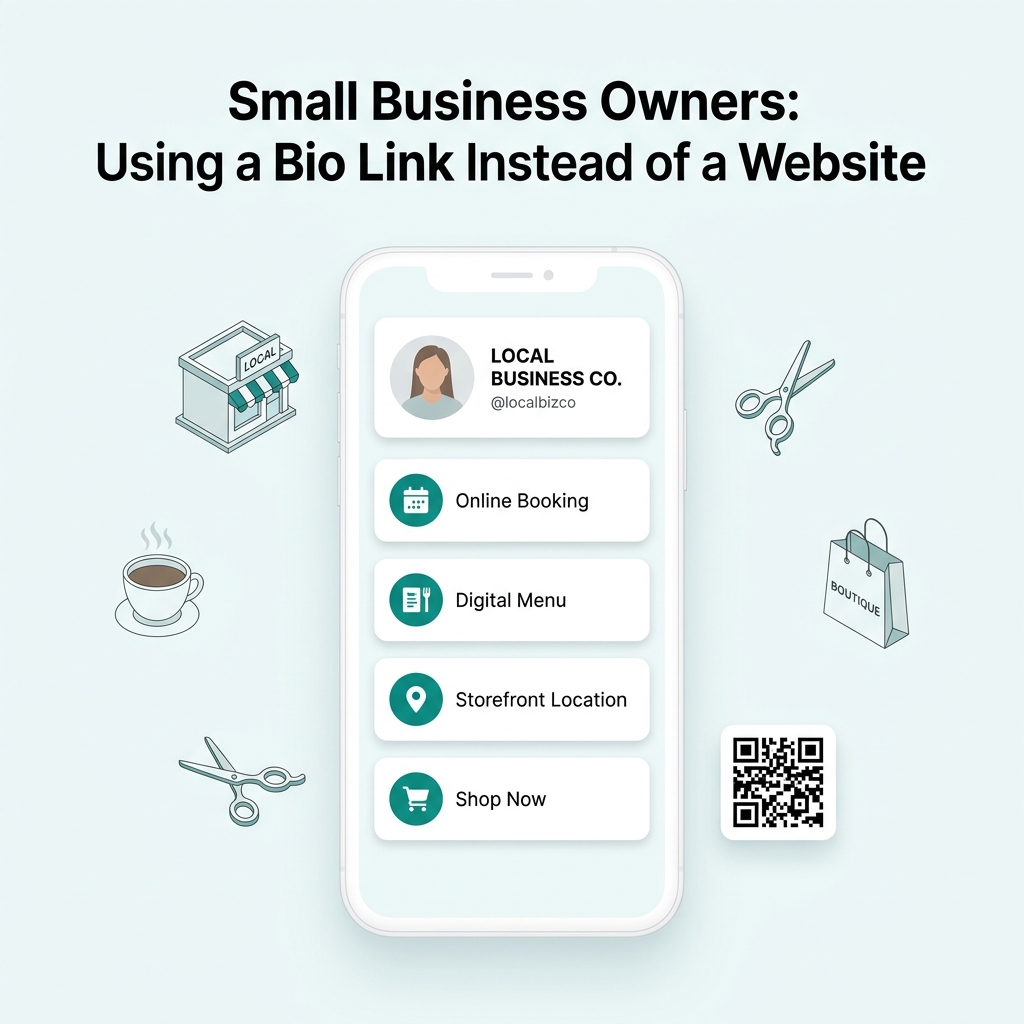
Small Business Owners: Using a Bio Link Instead of a Website
Discover why small business owners are replacing expensive, complex websites with streamlined Bio Link …