
How to Add a Clickable Link on Instagram Stories and Reels
With over 2 billion active monthly users, Instagram is one of the most powerful visual engines for creators, brands, software developers, models, and entrepreneurs. However, for years, driving traffic off Instagram was notoriously difficult due to platform link restrictions.
Fortunately, Instagram’s linking ecosystem has matured significantly. Whether you want to send your audience to a newly launched product line, a YouTube video, a developer portfolio, a newsletter sign-up page, or your unified bio hub, knowing how to add a clickable link on Instagram Stories and Reels is essential for maximizing your conversion rates.
In this step-by-step guide, you will learn how to add direct, high-converting clickable links to your Instagram Stories, how to navigate the unique linking constraints of Instagram Reels, and how to build a high-converting, light-themed bio hub using OnlyLink to capture every lead.
Part 1: How to Add a Clickable Link on Instagram Stories
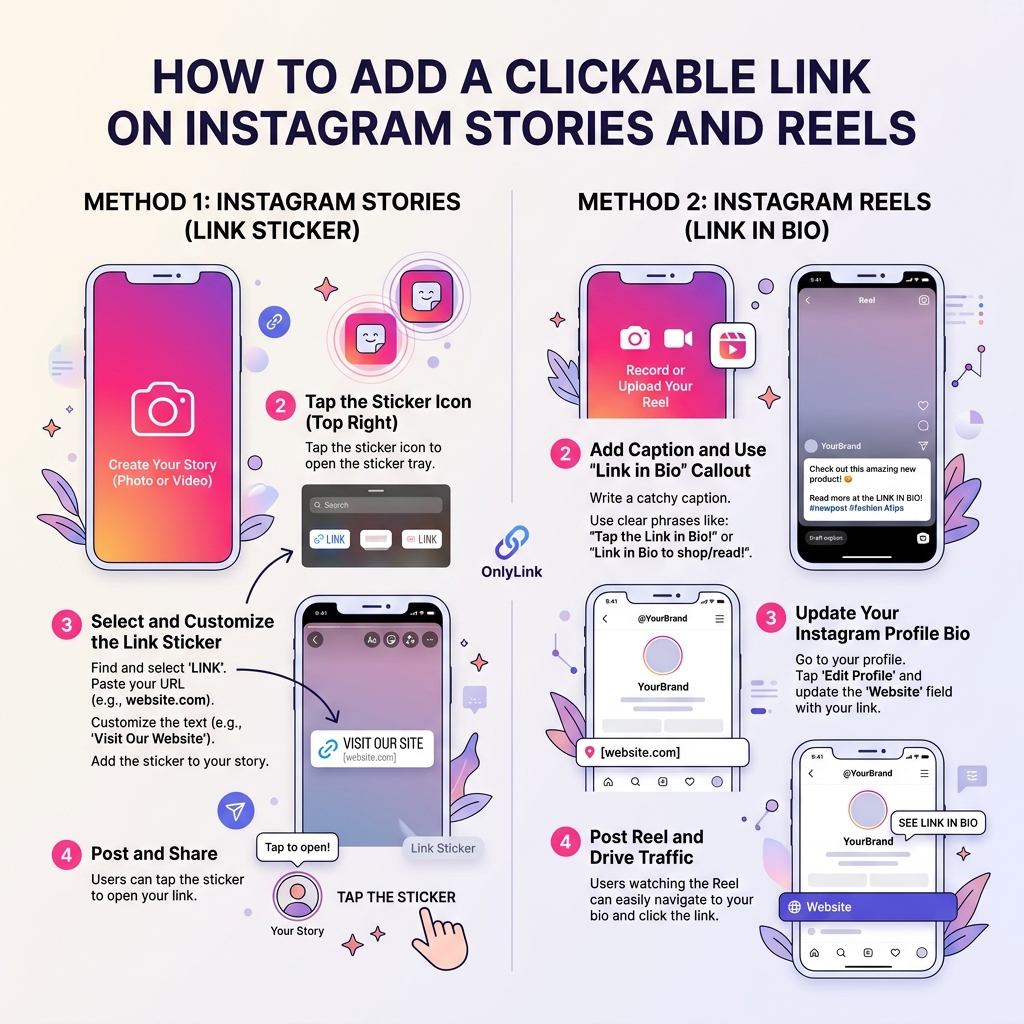
Adding a clickable link to your Instagram Story is straightforward thanks to the native Link Sticker. In the past, this feature was restricted to verified accounts or profiles with over 10,000 followers (the famous “Swipe Up” gesture). Today, every Instagram account—personal, creator, or business—has full access to Link Stickers.
Here is the exact step-by-step workflow:
Step 1 — Create or Upload Your Story Content
Open the Instagram app, swipe right from your home feed or tap your profile picture at the top left to enter the Story editor. Capture a photo/video or upload a graphic from your camera roll.
[!TIP] Use high-contrast graphics with clean, light backgrounds or vibrant background colors to ensure your link sticker stands out clearly to viewers.
Step 2 — Open the Sticker Tray
Tap the Sticker icon (the smiling square sticker symbol) located in the top navigation toolbar of the Story editor.
Step 3 — Select the “Link” Sticker
Scroll through the sticker options or type “Link” into the top search bar. Tap the blue Link sticker icon.
Step 4 — Enter Your Destination URL
In the URL field, paste the web address you want visitors to open.
Example: Paste your customized bio link, such as yourname.onlylink.click, so visitors can access all your important destinations in one place.
Step 5 — Customize the Sticker Text (Crucial for Higher CTR)
Do not leave the link sticker displaying raw URL text (like https://example.com/page?id=92834). Instead, tap "+ Customize sticker text" below the URL field and type a clear, compelling Call-To-Action (CTA).
High-converting sticker text examples:
- 🛍️ Shop the New Collection
- 🎧 Listen to Latest Episode
- 📖 Read Full Article
- 🚀 View My Developer Portfolio
- 🎁 Claim Your Free eBook
Step 6 — Position, Color-Style, and Publish
Tap Done. Pinch or pull the link sticker on your screen to resize it, and drag it to an easily clickable area (avoid placing stickers too close to the screen edges or the bottom navigation bar where users might accidentally close the story).
Tap the sticker itself before publishing to cycle through different light and dark color themes (e.g., solid white button, translucent background, or colorful accent).
Tap Your Story to publish!
Part 2: How to Add a Clickable Link on Instagram Reels
Unlike Instagram Stories, Instagram Reels do not allow direct clickable URL stickers placed inside the video content itself, nor are web addresses clickable inside Reel captions.
Because Reels are shown on the global Explore feed to non-followers, they represent your biggest viral reach opportunity. To convert Reel viewers into clicks, creators use five highly effective linking strategies:
Strategy 1: The “Link in Bio” Verbal & Visual Call-to-Action (Recommended)
The most popular and reliable method for Reels is guiding viewers to the clickable link located on your profile.
- Onscreen Text Overlay: Add a light-themed text bubble during the final 3 seconds of your Reel saying “Tap Link in Bio for Full Tutorial” or “Link in Bio to Shop”.
- Audio Cue: Say out loud in your video script: “I’ve linked all tools used in this video directly in my bio link!”
- Caption CTA: End your caption text with a clear arrow directive:
👇 Direct link available in bio: @yourusername.
Strategy 2: Share Your Reel to Stories with a Link Sticker
When you publish a new Reel, immediately share it to your Instagram Story:
- Open your published Reel and tap the Paper Airplane (Share) icon.
- Select Add to Story.
- Tap the Sticker Tray, select the Link Sticker, and paste your destination link directly onto the Story frame next to the Reel preview.
- Add an animated sticker pointing to the link sticker.
- Add the Story to a featured Story Highlight on your profile (e.g., “Reel Links” or “Shop Reels”) so it remains accessible permanently beyond 24 hours.
Strategy 3: Automated DM Comment Triggers (Auto-Responders)
You can use compliance-approved Instagram API automation tools (such as ManyChat) to automatically send clickable links directly to viewers’ Direct Messages when they comment on your Reel.
- Reel Caption: “Comment ‘DEMO’ below and I’ll send the direct link to your inbox!”
- User Action: User types “DEMO” in the Reel comments.
- Automated Result: Your account instantly sends a private DM with the clickable link directly to their inbox.
Strategy 4: Instagram Shopping Product Tagging (For E-Commerce)
If you operate an Instagram Shop connected to your e-commerce store (Shopify, WooCommerce, etc.), you can tag physical products directly inside your Reel.
- When viewers watch your Reel, a clickable “View Products” or “Shop Now” button appears at the bottom of the Reel screen, taking them straight to an in-app product detail page with direct checkout links.
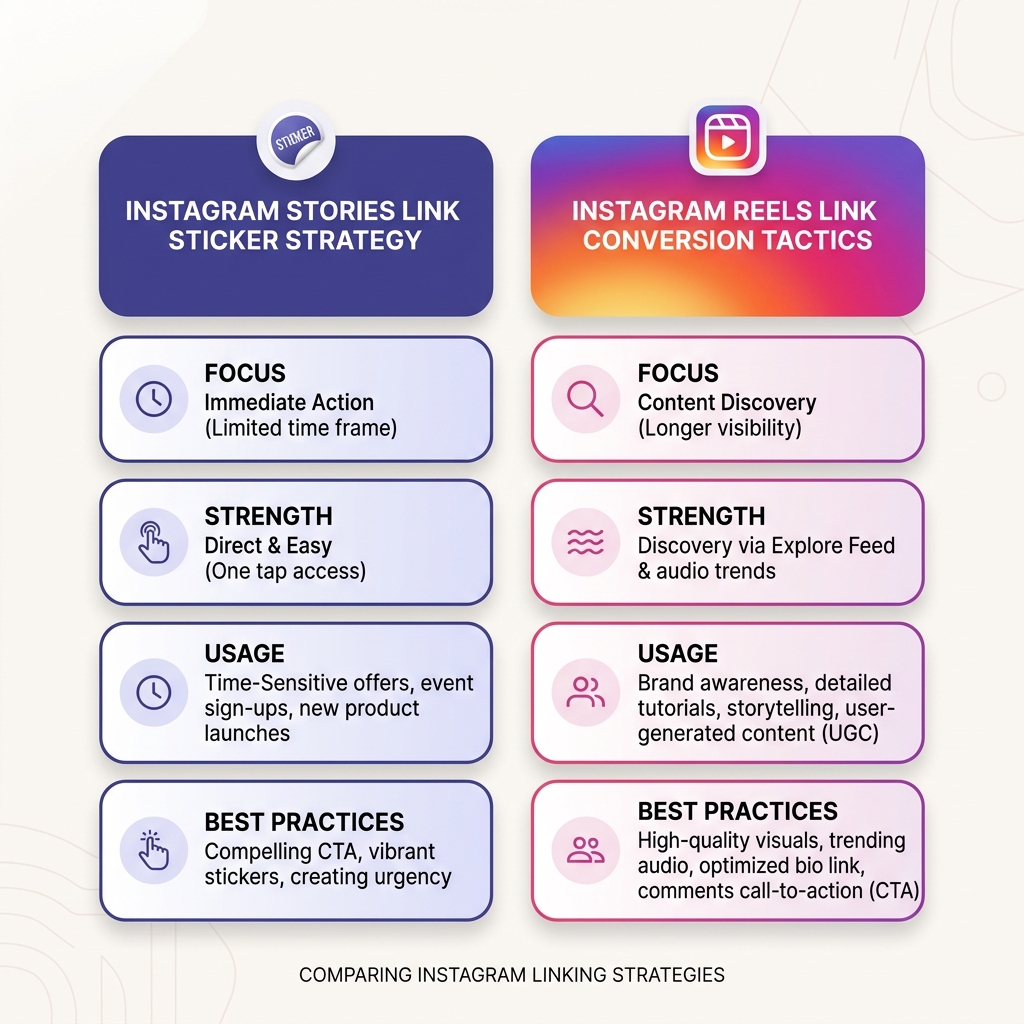
Stories vs. Reels Link Strategy Breakdown
Understanding when to leverage Stories versus Reels ensures you maximize both short-term urgency and long-term organic reach.
| Feature / Metric | Instagram Stories Link Sticker | Instagram Reels Link Strategy |
|---|---|---|
| Link Mechanism | Direct clickable button sticker on screen | Profile Bio Link CTA / Auto-DM Comment Trigger |
| Lifespan | 24 Hours (unless added to Highlights) | Evergreen (continues receiving views for months) |
| Primary Audience | Existing Followers & Engaged Fans | New Audience Discovery (Explore & Reels Feed) |
| Conversion Focus | Immediate impulse actions, limited-time offers | Brand discovery, in-depth tutorials, product showcases |
| Click Effort | 1 Tap (Instant redirect) | 2 Taps (Reel → Profile → Bio Link) |
| Best Used For | Flash sales, daily updates, new blog posts | Evergreen tutorials, viral clips, product demos |
Part 3: Maximizing Conversions with an OnlyLink Bio Hub
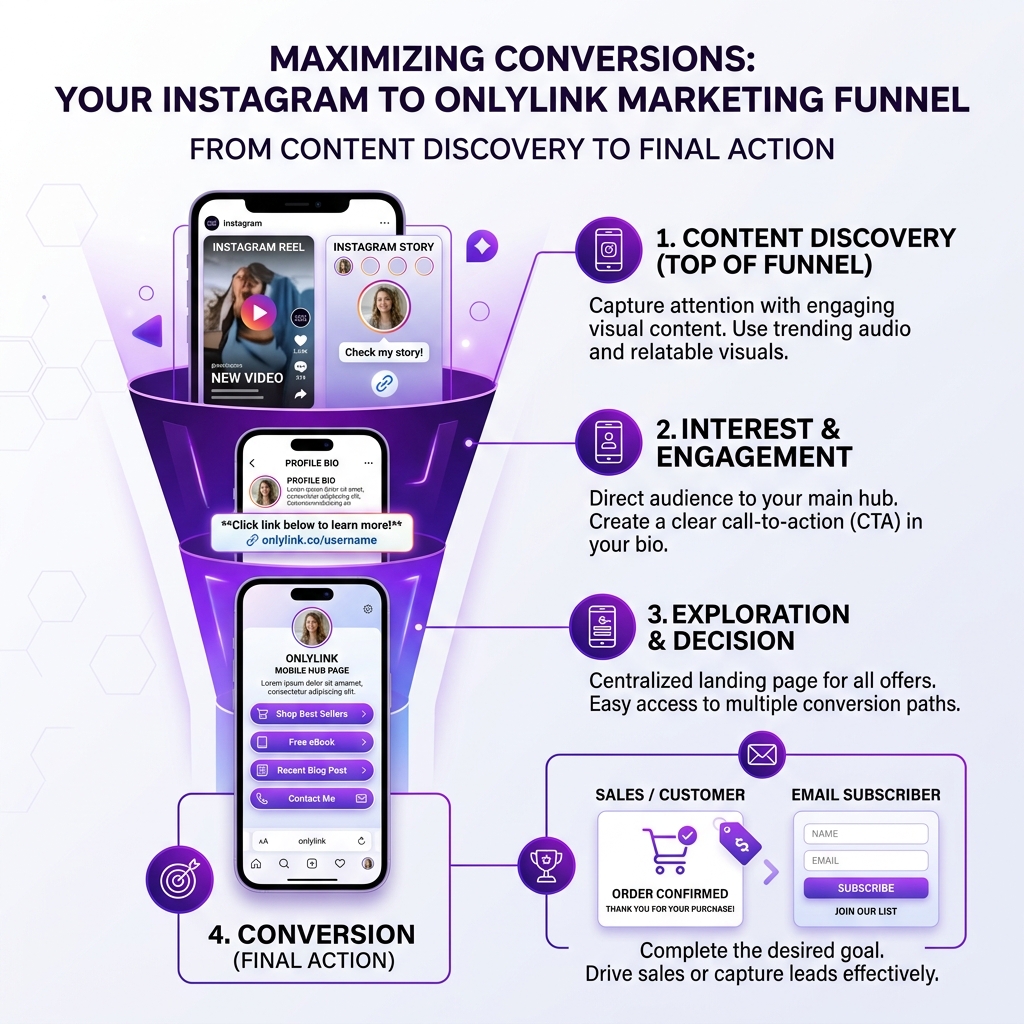
Sending users from Instagram Stories or Reels to a single, static product page or external website can waste valuable traffic. A user arriving from a Reel might be interested in your new YouTube video, your newsletter, your software portfolio, AND your social media channels.
By pointing your Instagram profile link to a dynamic, light-themed bio hub powered by OnlyLink, you provide a unified landing experience that converts up to 3x more traffic.
Why Top Creators Choose OnlyLink for Instagram Traffic:
- Lightning-Fast Light Theme Aesthetics: Clean, modern, light-theme templates that load in under 0.5 seconds, ensuring zero drop-off from mobile devices.
- Multi-Link Centralization: Display featured links, video embeds (YouTube/TikTok), music players, and lead capture forms on a single elegant page.
- Rich Media Integration: Embed playable video demos directly on your bio link page so visitors don’t have to leave.
- Real-Time Analytics: Track exactly which Instagram Stories or Reels drive the highest clicks, visitor geography, and conversion rates.
- Zero Ad Distractions: Keep full ownership over your brand presentation without third-party advertisements or cluttered UI elements.
Frequently Asked Questions (FAQs)
Do I need 10,000 followers to add links on Instagram Stories?
No. Instagram permanently removed the 10k follower restriction for story links in late 2021. Every active Instagram account can use the native Link Sticker on Stories regardless of follower count.
Can you click a link in an Instagram Reel caption?
No. URLs typed into Instagram Reel captions appear as plain text and cannot be clicked or tapped by viewers. You must direct viewers to the clickable link in your bio, use DM comment automation, or share the Reel to your Story with a Link Sticker.
How do I change the color of my Instagram Story Link Sticker?
After placing the Link Sticker on your Story canvas, simply tap the sticker button repeatedly before publishing. It will cycle through white, black, semi-transparent, and brand color accent themes.
How many links can I add to my Instagram Bio?
Instagram allows up to 5 links directly in your profile bio section. However, native multi-links appear as a small collapsed dropdown that buries your secondary destinations. Using a dedicated OnlyLink page provides a far superior, beautifully designed visual hub for all your content.
Conclusion: Start Turning Views into Action Today
Adding clickable links on Instagram Stories and mastering Reel call-to-actions bridges the gap between content creation and business revenue.
By combining engaging Story Link Stickers, strategic Reel bio CTAs, and a clean, light-theme OnlyLink bio hub, you ensure every viewer has a friction-free path to support your work, buy your products, or subscribe to your content.
Ready to supercharge your Instagram link strategy? Create your free OnlyLink page today and convert your social traffic like a pro!
Ready to build your link in bio?
Create your free OnlyLink page in under a minute unlimited links, analytics and custom designs.
Get started freeKeep reading
The Ultimate Link-in-Bio Guide for TikTok Creators
Master your TikTok bio strategy, convert short-form video views into sales, build an owned audience, and …
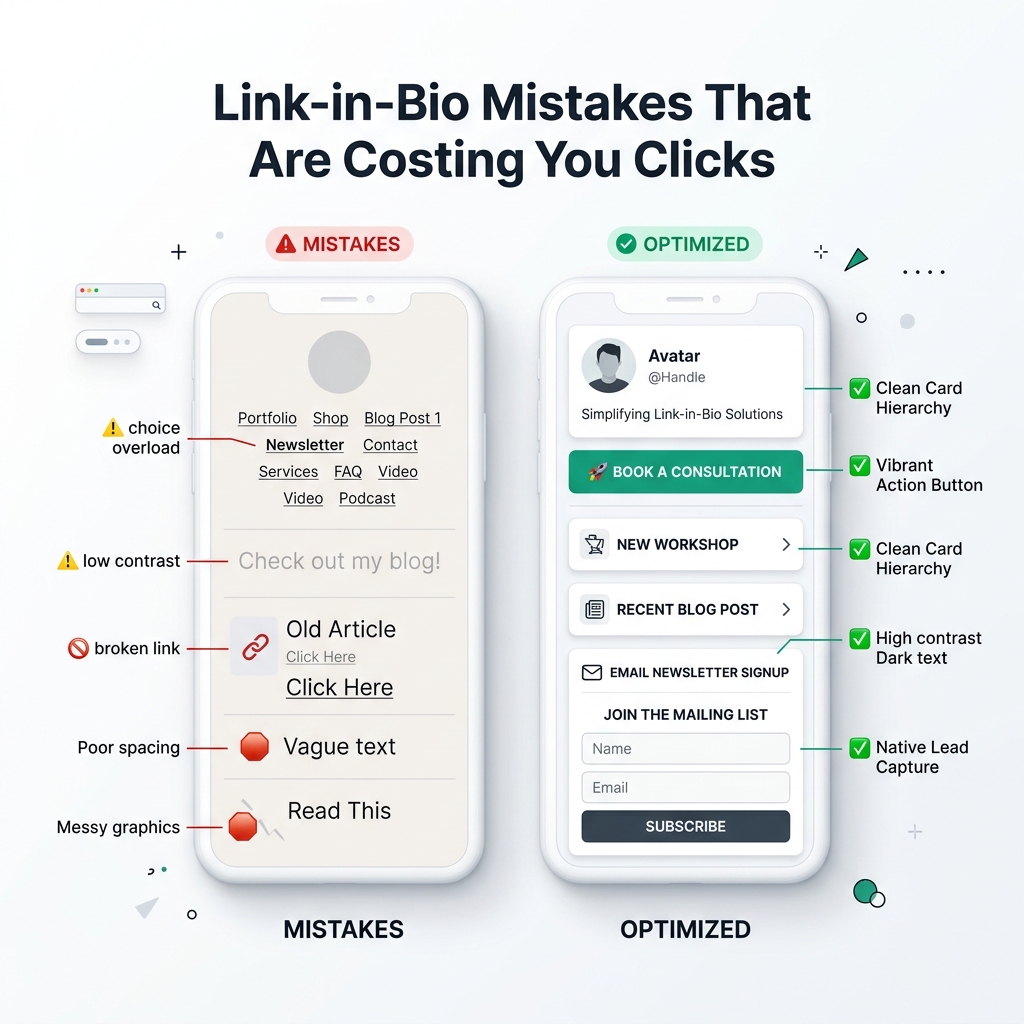
Link-in-Bio Mistakes That Are Costing You Clicks
Discover the top 7 high-friction bio link mistakes killing your social media conversions and learn how to fix …