
How Teachers Can Create a Central Hub for Online Classes and Learning Resources
It is 8:58 AM on a Tuesday morning. Class starts in exactly two minutes.
Your email inbox is already chiming like a casino slot machine:
- “Mr. Davis, where is the Zoom link for Period 2?”
- “Ms. Davis, I can’t find the Unit 4 lab worksheet on Canvas!”
- “Is today’s assignment due on Google Classroom or emailed as a PDF?”
- “Can you re-send the syllabus? My dog didn’t eat it, but my browser history did.”
If you are an educator in 2026, this frantic scene probably feels painfully familiar.
Over the past several years, educational technology has exploded with extraordinary innovations: interactive digital whiteboards, AI study partners, collaborative cloud docs, gamified quiz platforms, and video conferencing suites. But that technological explosion created an unintended byproduct that is silently driving educators, students, and parents up the wall: The 20-Tab Classroom Crisis.
Instead of spending their mornings inspiring curious minds, teachers spend up to 40% of their communication time acting as human search engines, copy-pasting the same URLs into emails, chat messages, and learning management system forums.
The good news? You don’t need a degree in software engineering or an expensive web development team to solve this.
By building a streamlined, light-theme Classroom Central Hub, educators can unite every live class link, assignment portal, slide deck, reading list, and parent notification into a single, lightning-fast digital front door.
Here is your complete blueprint for building a vibrant, high-impact learning hub that students and parents will actually love using.
1. The “20-Tab Classroom Crisis”: Why Students & Parents Are Drowning
To understand why a dedicated classroom hub is so transformative, take a step back and examine the digital hurdle the average student faces every single school day.
A typical middle school, high school, or university course requires interaction with at least half a dozen isolated platforms:
- Live Video: Zoom, Google Meet, or Microsoft Teams.
- Core LMS: Canvas, Blackboard, Schoology, or Google Classroom.
- Course Documents: Google Drive folders, Microsoft OneDrive, and PDF syllabus sheets.
- Interactive Learning: Quizlet decks, Kahoot games, Blooket challenges, and Desmos calculators.
- Support & Office Hours: Calendly booking links or email threads.
- Parent Communications: Remind app, ClassDojo, or school district portals.
┌────────────────────────────────────────────────────────────────────────┐
│                   THE DAILY STUDENT LINK OBSTACLE COURSE               │
├────────────────────────────────────────────────────────────────────────┤
│                                                                        │
│   Student Opens Phone ➔ Logs into LMS ➔ Clicks Course Folder           │
│         │                                                              │
│         ├── ❌ Error 404: Broken link in syllabus PDF                  │
│         ├── 🔍 15-minute search for today's Zoom passcode               │
│         ├── 📱 Mobile layout fails to load on smartphone               │
│         └── 📩 Frustrated email sent to teacher at 11:30 PM            │
│                                                                        │
└────────────────────────────────────────────────────────────────────────┘
The Mobile Usability Bottleneck
Here is the data point most school administrators overlook: Over 78% of secondary students and 92% of parents access school communications primarily from their smartphones.
Traditional Learning Management Systems (LMS) were designed in the early 2000s for desktop computer monitors. When a student tries to navigate complex dropdown menus, multi-folder nested directories, and heavy desktop stylesheets on a 6-inch phone screen, friction skyrockets.
When friction rises, homework submission rates plummet, live class attendance slips, and parent anxiety spikes.
The Central Hub Alternative
A modern Teacher Central Hub (built on a mobile-first platform like OnlyLink) completely eliminates navigation friction.
Instead of searching through endless submenus, students and families bookmark one clean link (onlylink.click/ms-jenkins-biology). In less than half a second, they are greeted by an intuitive, beautifully structured dashboard with 1-tap access to everything happening in class today.
2. The Teacher Resource Ecosystem: Chaos vs. Cohesion
When you organize your classroom’s digital footprint into a single micro-hub, your teaching workflow shifts from reactive scrambling to proactive clarity.
Explore the contrast below between the traditional scattered approach and the unified Central Hub model:
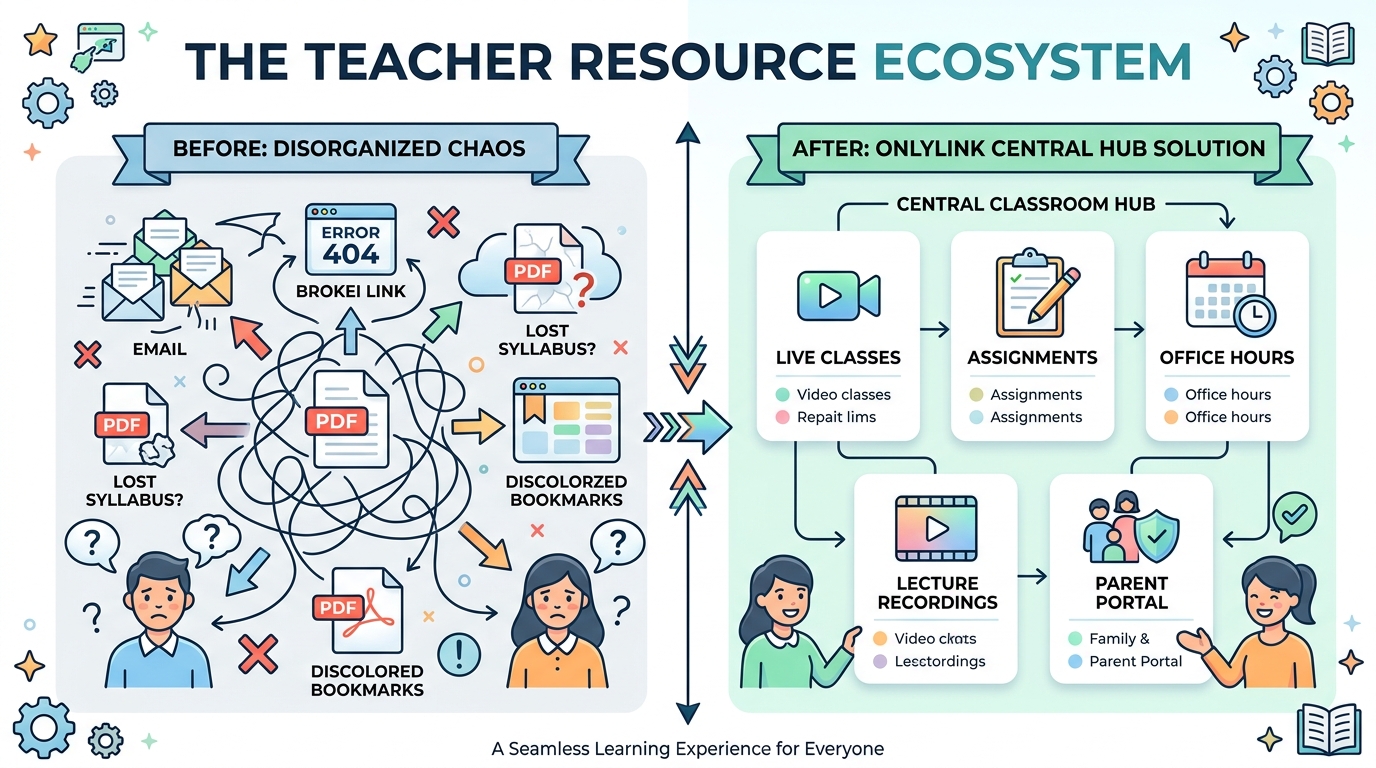
Side-by-Side Comparison: Traditional Scattered Links vs. Unified Light-Theme Hub
| Classroom Touchpoint | 🌪️ The Scattered Status Quo | ⚡ The OnlyLink Classroom Hub |
|---|---|---|
| Daily Access Point | 5 to 8 separate logins, apps, and bookmarks | Single memorable URL (onlylink.click/yourname) |
| Mobile Load Speed | 3 to 6 seconds per heavy LMS portal | < 0.4 seconds instant sub-second response |
| Live Class Joining | Lost in buried email calendar invites | Prominent 1-tap “Join Live Class” pulse button |
| Resource Discovery | Buried 4 folders deep in Google Drive | Direct visual cards for slides, readings, and labs |
| Emergency Updates | Mass emails that get routed to parent spam | Top sticky announcement banner visible immediately |
| Parent Transparency | Requires distinct parent login credentials | Instant 1-tap parent portal & weekly newsletter |
| Physical Classroom Sync | Handing out paper slips that get lost | Permanent QR code printed on desks and syllabus |
3. Why Light-Theme Visuals Are Essential in Education
When creating digital hubs for students, design aesthetics are not just cosmetic—they directly impact cognitive load, reading comprehension, and focus.
While dark mode is trendy in entertainment apps, extensive educational psychology and ergonomic research demonstrate that clean, light-theme interfaces are vastly superior for educational environments.
┌────────────────────────────────────────────────────────────────────────┐
│                LIGHT-THEME EDUCATIONAL DESIGN ARCHITECTURE             │
├────────────────────────────────────────────────────────────────────────┤
│                                                                        │
│   [ Crisp Soft-White Canvas (#F8FAFC) / Pure White Card Surfaces ]      │
│                                                                        │
│    ├── 🎓 Teacher Avatar & Verified Educator Badge                     │
│    ├── 🏷️ High-Contrast Charcoal Typography (#0F172A)                  │
│    ├── 🟢 Live Class Indicator Pill with Real-Time Status              │
│    ├── 📄 Elevated White Action Cards with Soft Micro-Shadows          │
│    ├── 🎨 Warm Pastel Accents (Teal #0D9488, Sky #0284C7, Mint #10B981)│
│    └── 📌 Clean Categorized Sections (Today, Homework, Help)           │
│                                                                        │
└────────────────────────────────────────────────────────────────────────┘
The 4 Educational Benefits of Light-Theme Layouts:
- Superior Daylight & Classroom Readability: Students frequently pull up resource links on tablets while seated near sunlit classroom windows, or on smartphones during commutes. Light themes eliminate dark-mode screen reflections and annoying glare.
- Reduced Cognitive Fatigue: Clean white card containers against soft off-white backdrops (
#F8FAFC) create distinct visual boundaries. Students with ADHD or dyslexia can process bite-sized information cards far more easily than dense walls of dark text. - Psychological Warmth & Encouragement: Bright, airy palettes with cheerful accents (mint green, sky blue, friendly coral) evoke optimism, curiosity, and psychological safety. Dark themes often feel heavy, rigid, or intimidating to younger learners.
- Sharp Contrast for Academic Materials: Mathematical equations, chemical formulas, PDF previews, and textbook diagrams are natively drawn on white backgrounds. In a light-theme hub, embedded materials blend seamlessly without jarring black-to-white color inversion.
4. Anatomy of the Perfect Teacher Classroom Hub
What does a high-converting, student-approved classroom hub actually look like in practice?
Here is a real-world design blueprint structured for maximum clarity and zero student confusion:
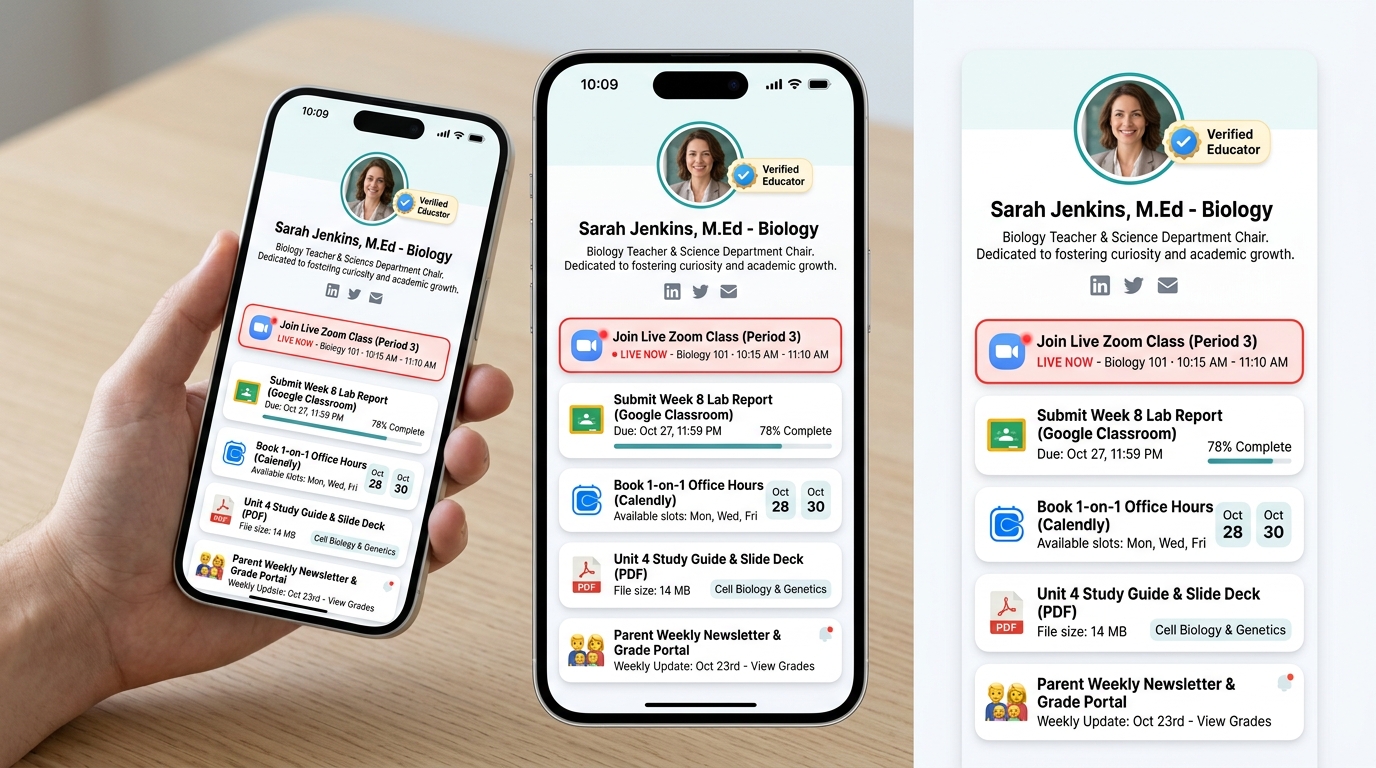
The 5 Essential Zones of Your Hub:
Zone 1: The Trust Anchor (Header)
- Professional Educator Avatar: A friendly, high-resolution headshot or classroom mascot.
- Verified Educator Badge: Builds instant authenticity and reassures parents that this is the official course page.
- Clear Course Identity: “Ms. Sarah Jenkins, M.Ed. — AP Biology & Science Dept. Chair”.
- One-Line Mission or Office Hours Note: “Dedicated to curiosity and scientific discovery. Room 304 | Office Hours Mon & Wed 3 PM.”
Zone 2: The “Right Now” Urgent Action Card (Top Priority)
- When live distance learning or hybrid instruction is happening, this button sits at the very top.
- Features a vibrant, high-visibility callout border or pulsing live indicator: 🔴 “Join Live Zoom Class (Period 3) — LIVE NOW”.
- Saves students from frantically digging through their calendars when the bell rings.
Zone 3: Today’s Homework & Assignment Dropbox
- Direct deep-link to the current week’s assignment: “Submit Week 8 Lab Report (Google Classroom) — Due Oct 27”.
- Eliminates the #1 student excuse: “I didn’t know where the submission link was.”
Zone 4: Core Curriculum & Study Resources
- Download Course Syllabus & Grading Policy (PDF).
- Interactive Flashcard Deck (Quizlet / Anki).
- Weekly Lecture Slide Decks (Google Slides / Canva).
- Recorded Lesson Archive (YouTube / Loom / Drive).
Zone 5: Student Support & Parent Engagement
- Book 1-on-1 Help Session (Calendly / Google Calendar).
- Anonymous “Ask a Question” Form (Google Forms).
- Parent Weekly Newsletter & Grade Portal (Infinite Campus / PowerSchool).
5. Step-by-Step Blueprint: Build Your Classroom Hub in 5 Minutes with OnlyLink
Setting up your digital classroom front door doesn’t require a weekend of coding. With OnlyLink.click, you can create, customize, and launch your central hub before your morning coffee cools down:
┌────────────────────────────────────────────────────────────────────────┐
│                        5-MINUTE SETUP WORKFLOW                         │
├────────────────────────────────────────────────────────────────────────┤
│                                                                        │
│  [Step 1] Claim Handle ➔ [Step 2] Pick Light Theme ➔ [Step 3] Add Cards │
│                                                                        │
│                      ➔ [Step 4] Group Links ➔ [Step 5] Share QR Code    │
│                                                                        │
└────────────────────────────────────────────────────────────────────────┘
Step 1: Claim Your Custom Classroom URL
Head over to OnlyLink.click and create your free account. Pick a clean, intuitive handle that matches your course or teacher name:
onlylink.click/ms-jenkins-biologyonlylink.click/mr-hernandez-mathonlylink.click/oakridge-grade5
Step 2: Select a Crisp Light-Theme Template
Navigate to the Design tab and choose a clean light-mode template. We recommend:
- Background: Soft Pure White (
#FFFFFF) or Warm Cloud (#F8FAFC). - Card Style: Elevated White Cards with rounded corners (
16px) and subtle drop shadows (0 4px 12px rgba(0,0,0,0.06)). - Typography: Clean modern sans-serif fonts such as Inter, Outfit, or Plus Jakarta Sans.
- Accent Color: Pick a calm, authoritative educational hue—vibrant teal (
#0D9488), bright royal blue (#2563EB), or warm sage green (#059669).
Step 3: Populate Your High-Priority Links
Add your primary educational portals. To make the interface engaging, take advantage of OnlyLink’s icon integrations:
- 🎥 Video Icon: Link directly to your Zoom or Google Meet room.
- 📝 Clipboard Icon: Link to your Google Classroom, Canvas, or Blackboard assignment.
- 🗓️ Calendar Icon: Connect your Calendly for office hours and parent-teacher conference bookings.
- 📊 Chart Icon: Direct link to your school’s student information system (SIS) gradebook.
Step 4: Use Link Grouping & Section Headers
Don’t dump 20 unorganized buttons on the page. Use Section Headers inside your OnlyLink dashboard to divide links into intuitive buckets:
- 🟢 Today’s Live Class & Agenda
- 📚 Active Homework & Assignments
- 🔬 Unit Study Guides & Slides
- 👨👩👦 For Parents & Guardians
Step 5: Test on Mobile
Preview your page on your smartphone. Verify that buttons are large enough for comfortable touch tapping and that descriptions are concise.
6. Tailored Hub Blueprints Across Educational Levels
Different grade levels and teaching contexts have distinct digital requirements. Here is how educators across varying environments tailor their OnlyLink hubs for maximum impact:
🧸 Elementary & Primary School (K-5)
- Primary Focus: Parents and guardians are the core users.
- Top Header: Colorful classroom avatar, room number, and teacher contact hours.
- Top Link: 📢 “This Week’s Classroom Newsletter & Spelling Words”.
- Key Cards:
- 🍎 Lunch Menu & Daily Recess Schedule.
- 📖 Reading Log Submission Portal.
- 🚌 Bus Route Changes & Early Dismissal Notes Form.
- 📸 Classroom Photo Gallery (Private Seesaw / ClassDojo Link).
📐 Middle & High School (Grades 6-12)
- Primary Focus: Fostering student self-reliance while maintaining parental transparency.
- Top Header: Course title, teacher office location, and next major exam countdown.
- Top Link: 🔴 “Today’s Live Stream / Meet Room” (during remote/hybrid days).
- Key Cards:
- 📝 Current Homework Assignment & Submission Deadline.
- ⚡ Unit Exam Study Guide & Practice Questions.
- 🧪 Lab Safety Contract & Materials Checklist.
- 🗓️ Schedule Extra Help During Lunch / Study Hall.
- 📬 Parent Progress Report Link.
🎓 Higher Education & University Professors
- Primary Focus: Academic rigor, research dissemination, and streamlined student scheduling.
- Top Header: Professor title, academic department, and university credentials.
- Top Link: 📄 “Download Complete Course Syllabus (PDF)”.
- Key Cards:
- 🗓️ Book 15-Minute Office Hours (Calendly Sync).
- 📚 Weekly Reading List & JSTOR / Library Repository.
- 💻 Lecture Slides Archive (Google Drive Folder).
- ✉️ Teaching Assistant (TA) Contact Info & Recitation Times.
- 🔬 Research Lab Publications & Undergraduate Opportunities.
💡 Private Tutors, Test Prep & Online Course Creators
- Primary Focus: Student onboarding, session scheduling, and monetization.
- Top Header: Subject expertise (e.g., “SAT Math Specialist & Calculus Tutor”).
- Top Link: 🚀 “Book a Free 20-Minute Diagnostic Consultation”.
- Key Cards:
- 💳 Lesson Package Pricing & Direct Stripe / PayPal Checkout.
- 🏆 Student Score Improvements & Parent Testimonials.
- 📝 Download Free SAT Formula Cheat Sheet (Lead Magnet).
- 💬 Chat on WhatsApp / Message Me Directly.
7. Bridging the Physical Classroom to Digital Resources with QR Codes
One of the greatest superpowers of a centralized digital hub is how effortlessly it connects the physical classroom to your online learning materials.
In previous decades, handing out paper syllabi, permission slips, and assignment rubrics resulted in crumpled paper at the bottom of student backpacks.
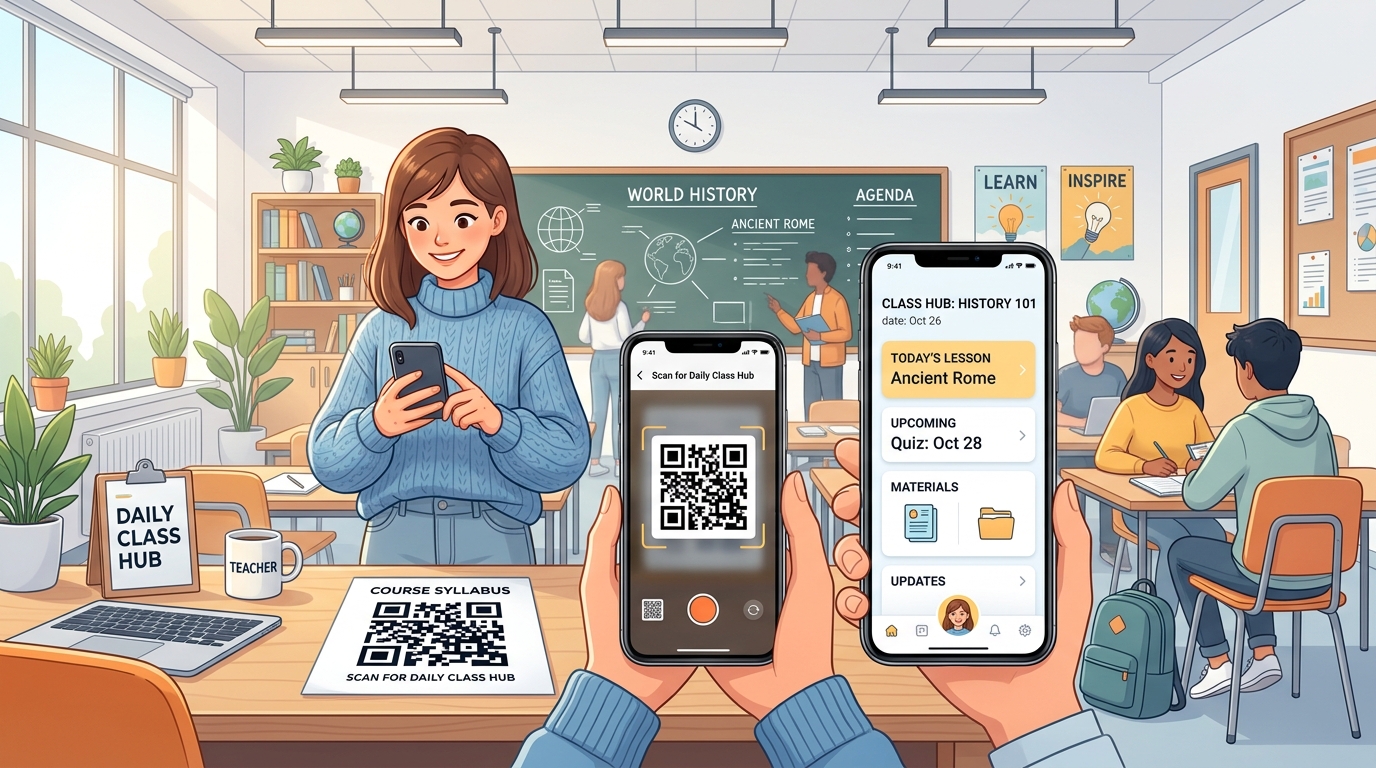
With OnlyLink, every classroom hub automatically generates a high-resolution vector QR code that links straight to your light-themed page.
4 Brilliant Ways Teachers Use Classroom QR Codes:
- The Permanent Syllabus Header: Print your hub’s QR code in the top-right corner of your first-day paper syllabus. Even if students lose the physical handout, scanning the QR code on a friend’s copy brings up the dynamic, up-to-date digital version.
- Desk & Workstation Badges: Laminate a small 2-inch square QR code badge and tape it to student lab tables or desks. When starting group activities, students tap their camera and are immediately viewing today’s digital rubric.
- Classroom Door Notice Board: Place a printed QR code right outside your classroom door. If a student arrives during office hours or while you are at lunch, scanning the code reveals your live office hours calendar, emergency announcements, and alternative contact methods.
- Back-to-School Night Parent Handouts: During parent orientation, display your hub QR code on your interactive whiteboard. Parents scan it in seconds and bookmark your hub directly to their smartphone home screens—no lost paper flyers.
[!TIP] The Zero-Reprint Advantage: When you use a dynamic OnlyLink QR code, the QR pattern never changes. If your Zoom meeting ID updates or you switch from Canvas to Google Classroom mid-semester, simply update the link in your OnlyLink dashboard. Every printed QR code across your school instantly routes to the new destination.
8. Pro Tips to Keep Your Classroom Hub Catchy & Engaging
To ensure students and parents actively check your hub rather than ignoring it, apply these proven engagement best practices:
1. Apply the “Rule of 7”
Do not overwhelm students with 30 links. Cognitive psychology confirms that working memory degrades when presented with more than 7 choices at once. Keep your primary active cards under 7, and tuck older archives into an expandable accordion or a linked Google Drive folder.
2. Implement the “Friday 2-Minute Refresh”
Set a recurring calendar reminder every Friday afternoon for 2 minutes:
- Update next week’s agenda.
- Swap out completed homework links for the upcoming unit.
- Post any reminders for upcoming school holidays or exam dates.
3. Gamify Independent Study with Interactive Cards
Embed interactive links to Blooket games, Kahoot challenges, or Quizlet live competitions. Give the card an eye-catching label: "🎮 Beat the High Score: Cell Mitosis Review Game". You will be amazed at how many students practice outside of school hours when review feels like gaming.
4. Provide an Anonymous “I’m Confused” Feedback Card
Many students are too intimidated to raise their hand in front of peers or send a direct email when struggling with a concept. Add an anonymous Google Form card: "🙋 Ask a Question Anonymously". Addressing these questions at the start of next class builds incredible trust and psychological safety.
The Ultimate Teacher Hub Setup Checklist
Before sharing your new classroom hub with students and parents, run through this quick checklist:
- [ ] Claimed clean custom URL (e.g., onlylink.click/mr-smith-history)
- [ ] Selected a bright, high-contrast light theme template
- [ ] Uploaded a friendly profile picture with verified badge
- [ ] Added live class video link (Zoom/Meet) at the top
- [ ] Linked primary LMS assignment dropbox with due dates clearly visible
- [ ] Linked core syllabus, textbook, and study materials
- [ ] Integrated Calendly or scheduling tool for student office hours
- [ ] Added parent portal or weekly announcement section
- [ ] Tested layout and responsiveness on both iPhone and Android
- [ ] Downloaded classroom QR code for syllabus and desk stickers
Conclusion: Transform Your Classroom Communication Today
Teaching is one of the most noble, impactful, and demanding professions in the world.
Your energy is best spent leading engaging discussions, providing insightful feedback, and igniting student curiosity—not repeatedly hunting down lost Zoom URLs, re-emailing PDF worksheets, or untangling broken bookmarks.
By creating a light-theme Classroom Central Hub on OnlyLink, you give your students, parents, and yourself the greatest gift of modern edtech: frictionless clarity.
One clean link. One organized launchpad. Zero missed deadlines.
Ready to build your digital classroom front door?
👉 Create your free Light-Themed OnlyLink Classroom Hub now and bring effortless harmony to your teaching workflow in under 5 minutes.
Ready to build your link in bio?
Create your free OnlyLink page in under a minute unlimited links, analytics and custom designs.
Get started freeKeep reading
QR Codes 101: Bringing Your Bio Link Offline
Learn how QR codes can bridge your offline presence with your online bio link. Discover where to use QR codes, …
Glassmorphism, Gradients, and Wallpapers: Bio Page Design Trends for 2026
Explore the top bio page design trends dominating 2026 — glassmorphism effects, gradient color palettes, and …