
Create a Digital Business Card with OnlyLink.click: The Ultimate Guide (2026)
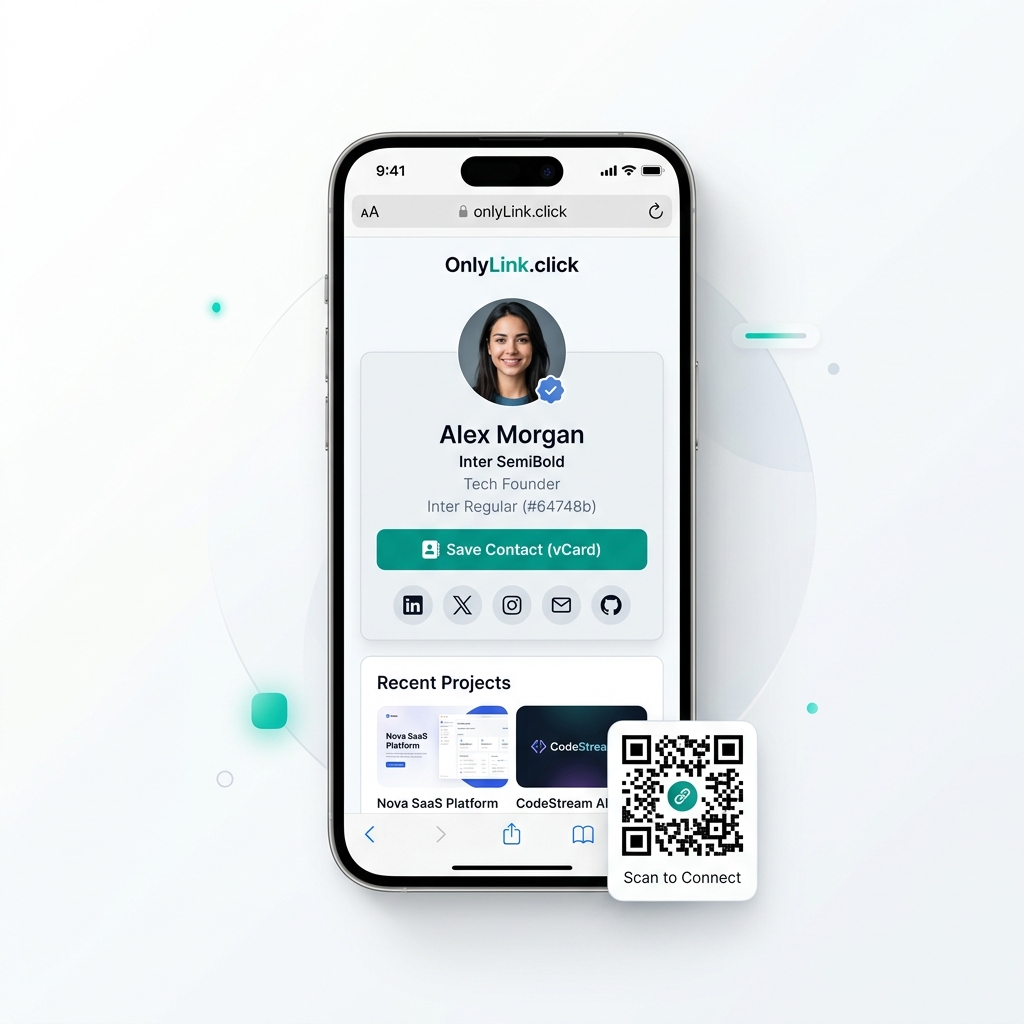
In today’s fast-paced digital economy, hand-off networking has undergone a massive transformation. The era of carrying stacks of paper business cards in your wallet, exchanging paper slips at conferences, and manually typing phone numbers into your contact list is officially over.
According to recent business networking surveys, over 88% of paper business cards are thrown away within 7 days of being handed out. Even worse, if your title, phone number, or office address changes, your entire batch of printed cards becomes instantly obsolete—costing professionals hundreds of dollars in re-printing fees and generating unnecessary paper waste.
Enter the Digital Business Card.
By using OnlyLink.click, modern entrepreneurs, executives, creators, freelancers, and sales teams can build a stunning, interactive digital business card in under two minutes. Whether shared via a quick smartphone QR code scan, an NFC tap, or a bio link on social media, your OnlyLink profile turns casual introductions into instant, lasting connections.
Here is your complete guide on how to create a digital business card with OnlyLink.click, optimize it with modern light-theme visual principles, and streamline your professional networking.
What Is an OnlyLink Digital Business Card?
An OnlyLink Digital Business Card is a mobile-optimized personal landing hub designed to consolidate your professional identity, contact details, social links, portfolio work, and appointment scheduling into one seamless page.
Unlike static paper cards or basic link lists, an OnlyLink card is an interactive action dashboard.
Key Capabilities of an OnlyLink Digital Card:
- 1-Click vCard Contact Saving: Visitors can tap one button to download your complete contact card (
.vcf) directly into their iPhone or Android phone address book. - Instant Touchless Sharing: Share via dynamic QR code, NFC smart card tap, SMS, email signature, or social media profiles.
- Real-Time Instant Updates: Update your phone number, job title, email, or company branding anytime without re-printing physical cards.
- Rich Media Integration: Showcase intro videos, embedded pitch decks, client portfolios, lead capture forms, and meeting booking calendars.
- Light-Theme Aesthetics: Styled with clean white cards, soft layered drop shadows, crisp Inter typography, and high-contrast teal highlights (
#0d9488) for maximum mobile readability.
Traditional Paper Cards vs. OnlyLink Digital Business Cards
Why are thousands of top professionals making the switch from paper to digital cards? The comparison speaks for itself:
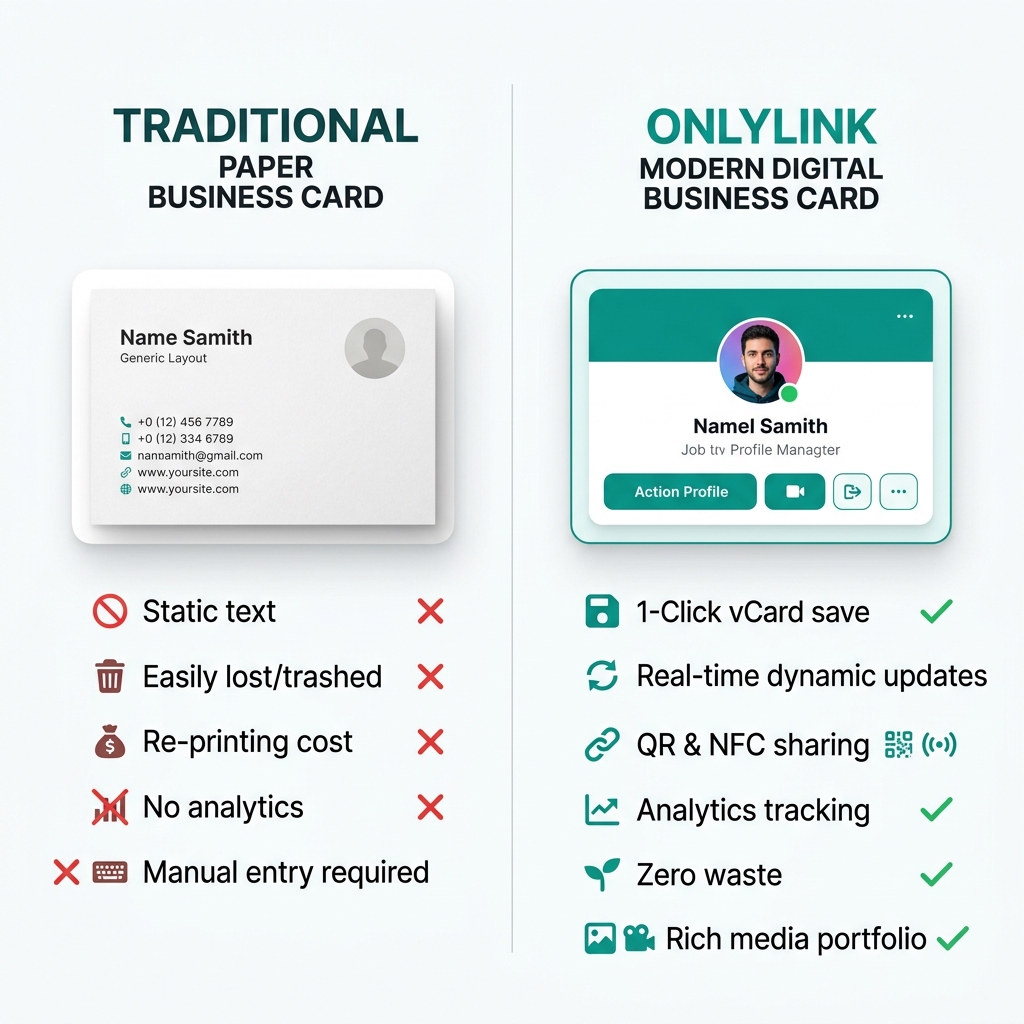
Side-by-Side Feature Matrix
| Feature | Traditional Paper Business Card | OnlyLink Digital Business Card |
|---|---|---|
| Contact Saving | Manual typing required (88% lost/trashed) | ⚡ 1-Click Instant vCard Download |
| Information Updates | Requires expensive re-printing | 🔄 Real-Time Instant Edits (Zero Cost) |
| Sharing Methods | Physical handoff only | 📱 NFC Tap, QR Code, URL, Social Bio |
| Rich Content | Text and static logo only | 🎬 Videos, Portfolios, Calendars, Socials |
| Lead Generation | Passive (hope they call you) | 📥 Embedded Lead Capture & Booking Forms |
| Analytics & Tracking | Impossible to measure ROI | 📊 Real-Time Profile Views & Click Analytics |
| Environmental Impact | Contributes to paper waste | 🌿 100% Eco-Friendly & Sustainable |
The Modern Digital Networking Ecosystem Workflow
Networking effectively isn’t just about sharing a phone number; it’s about guiding your new contact through a smooth conversion journey.
Here is how traffic and contacts flow through the OnlyLink Digital Business Card Ecosystem:
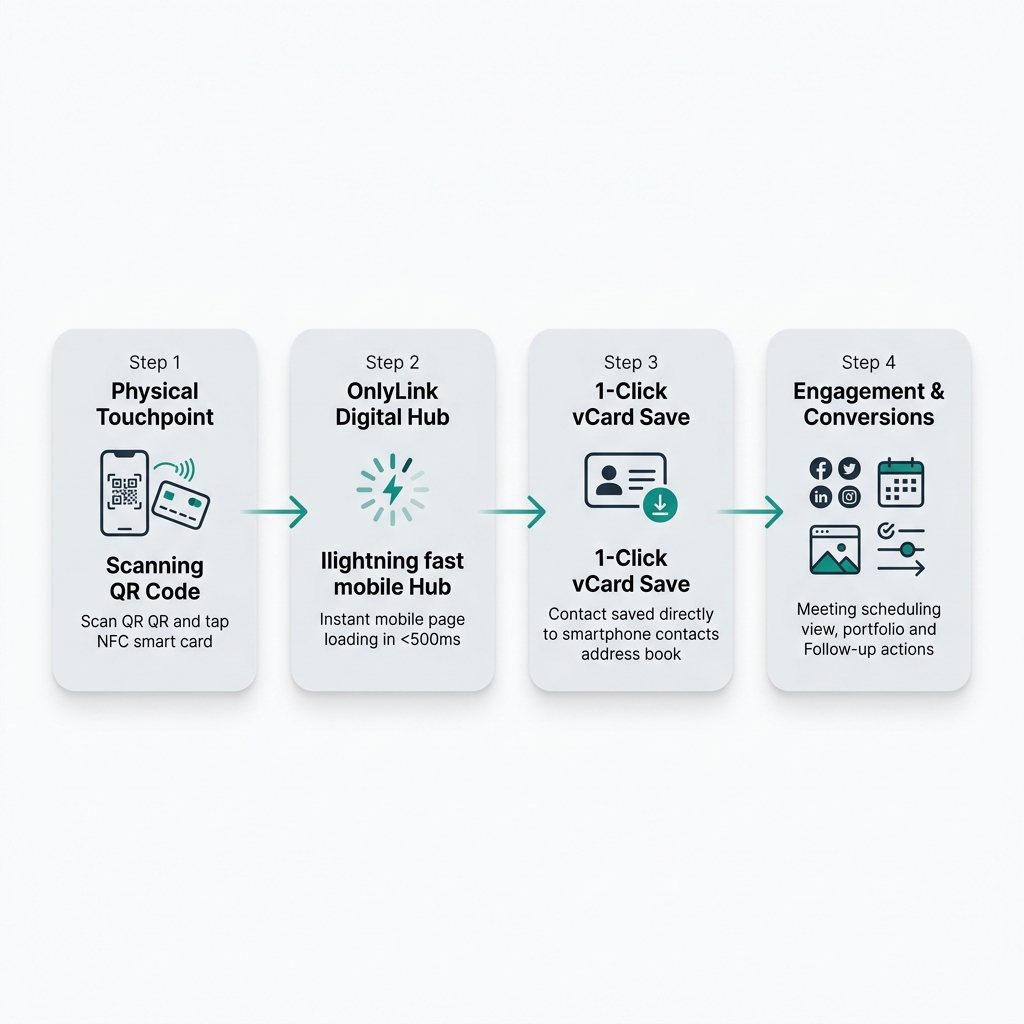
The 4 Networking Touchpoints:
- Step 1: Physical Touchpoint (Scan or Tap)
- Meet a client or prospective partner in person. Allow them to scan your customized OnlyLink QR code on your phone screen/watch or tap an NFC smart card against their phone.
- Step 2: OnlyLink Digital Hub Loading
- Your lightweight mobile hub loads in under 500 milliseconds. Designed with a clean light theme, visitors instantly see your verified photo, job title, and company badge.
- Step 3: 1-Click vCard Save
- The prospect clicks the featured “Save Contact” button. Your full name, direct phone number, email address, job title, company name, and website URL automatically import into their phone contacts.
- Step 4: Engagement & Conversions
- Before closing your profile, the contact explores your portfolio, schedules a 1-on-1 discovery call, or follows your professional social media accounts.
How to Create Your Digital Business Card on OnlyLink.click (Step-by-Step)
Creating your digital business card on OnlyLink is fast, simple, and requires zero technical or coding skills. Follow these 5 steps:
Step 1: Sign Up & Claim Your Custom URL
Head to OnlyLink.click and register your free account. Choose a clean, professional handle that matches your personal brand or name:
alexmorgan.onlylink.clicksarahchen-consulting.onlylink.click
Step 2: Set Up Your Light-Theme Visual Profile
First impressions matter. Navigate to the profile customization tab and add:
- High-Resolution Headshot: Upload a clean, professional portrait with good lighting.
- Verified Display Name & Title: E.g., “Alex Morgan — Principal Architect & Tech Founder”.
- Short Bio Statement: A 1-2 sentence elevator pitch explaining how you help clients or partners.
- Light Theme Visual Palette: Select crisp white background containers (
#ffffff), soft gray borders (#e5e7eb), and high-contrast teal primary buttons (#0d9488).
Step 3: Enable the 1-Click vCard Contact Download Button
Make saving your contact information effortless:
- Turn on the vCard Action Module in your dashboard settings.
- Enter your primary phone number, direct email, office address, and job title.
- OnlyLink automatically formats your contact data into a mobile-standard
.vcffile that works natively on Apple iOS and Android devices.
Step 4: Add Direct Action Buttons & Social Channels
Add structured call-to-action buttons for your primary contact channels:
- 📞 Call Me:
tel:+15550192834 - ✉️ Send Email:
mailto:alex@example.com - 📅 Book a Meeting: Link to your Calendly or Google Calendar booking page.
- 💼 LinkedIn Profile: Link to your professional profile.
- 🎨 Portfolio / Case Studies: Showcase your top projects or client testimonials.
Step 5: Save & Share via QR Code or NFC
Once your card is published:
- Download Your QR Code: OnlyLink generates a high-resolution vector QR code. Save it to your smartphone photo gallery, set it as your lock screen wallpaper, or print it on physical marketing assets.
- Program an NFC Smart Card: If you use an NFC card (such as a bamboo, plastic, or metal NFC business card), simply set your OnlyLink URL (
yourname.onlylink.click) as the target link.
5 Design Tips to Make Your Digital Business Card Stand Out
To ensure your digital business card projects maximum authority and drives high engagement, apply these proven light-theme design principles:
1. Maintain High Visual Contrast
Light background themes provide a clean, modern aesthetic. Ensure your text color is deep slate (#111827 or #1f2937) to maintain optimal accessibility contrast on mobile screens, even in direct sunlight.
2. Put Your Primary Action Above the Fold
Don’t hide your most important contact link at the bottom of the page. Place your “Save Contact (vCard)” button directly underneath your avatar and name header so visitors can save your contact details without scrolling.
3. Use Clear Micro-Copy CTAs
Avoid vague labels like “Link 1” or “Click Here”. Use action-oriented labels:
- ❌ Generic: My Email -> ✅ Actionable: ✉️ Send Alex an Email
- ❌ Generic: Calendar -> ✅ Actionable: ⚡ Book a 15-Min Strategy Call
4. Keep Visual Layout Clean and Uncluttered
Group related links into clean content cards using subtle 1px border lines and whitespace. Too many cluttering elements cause decision paralysis. Limit your main page view to 4-6 primary action blocks.
5. Monitor Your Networking Analytics
Track how well your networking efforts perform. OnlyLink’s real-time analytics dashboard reveals total card views, unique visitors, vCard downloads, and link click-through rates (CTR)—giving you clear ROI on your networking events and meetings.
Frequently Asked Questions (FAQ)
Is creating a digital business card on OnlyLink free?
Yes! OnlyLink provides a robust free plan that includes custom profile creation, unlimited links, vCard contact downloads, QR code generation, and light-theme design customization.
How does the recipient save my contact to their phone?
When a recipient scans your QR code or taps your NFC card, your OnlyLink profile opens in their mobile browser. They simply tap the “Save Contact” button, and their phone immediately prompts them to add your name, number, email, and photo into their contacts list.
Does the person scanning my card need to download an app?
No! OnlyLink digital business cards are 100% web-based. Anyone with a smartphone can view your card, save your contact info, and click your links directly in Safari, Chrome, or any mobile browser without installing any app.
Can I pair OnlyLink with a physical NFC card?
Absolutely. You can link your OnlyLink digital business card URL to any blank NFC card, key fob, or sticker using any free NFC writing app (like NFC Tools).
Ready to Upgrade Your Professional Networking?
Ditch paper business cards today and step into the future of touchless, high-converting networking. Create your free, light-themed digital business card on OnlyLink.click in under two minutes.
Ready to build your link in bio?
Create your free OnlyLink page in under a minute unlimited links, analytics and custom designs.
Get started freeKeep reading
QR Codes 101: Bringing Your Bio Link Offline
Learn how QR codes can bridge your offline presence with your online bio link. Discover where to use QR codes, …
Glassmorphism, Gradients, and Wallpapers: Bio Page Design Trends for 2026
Explore the top bio page design trends dominating 2026 — glassmorphism effects, gradient color palettes, and …